Setting Up a Swap File on a Low-Memory Linux VPS to Prevent Node.js Out-of-Memory Crashes
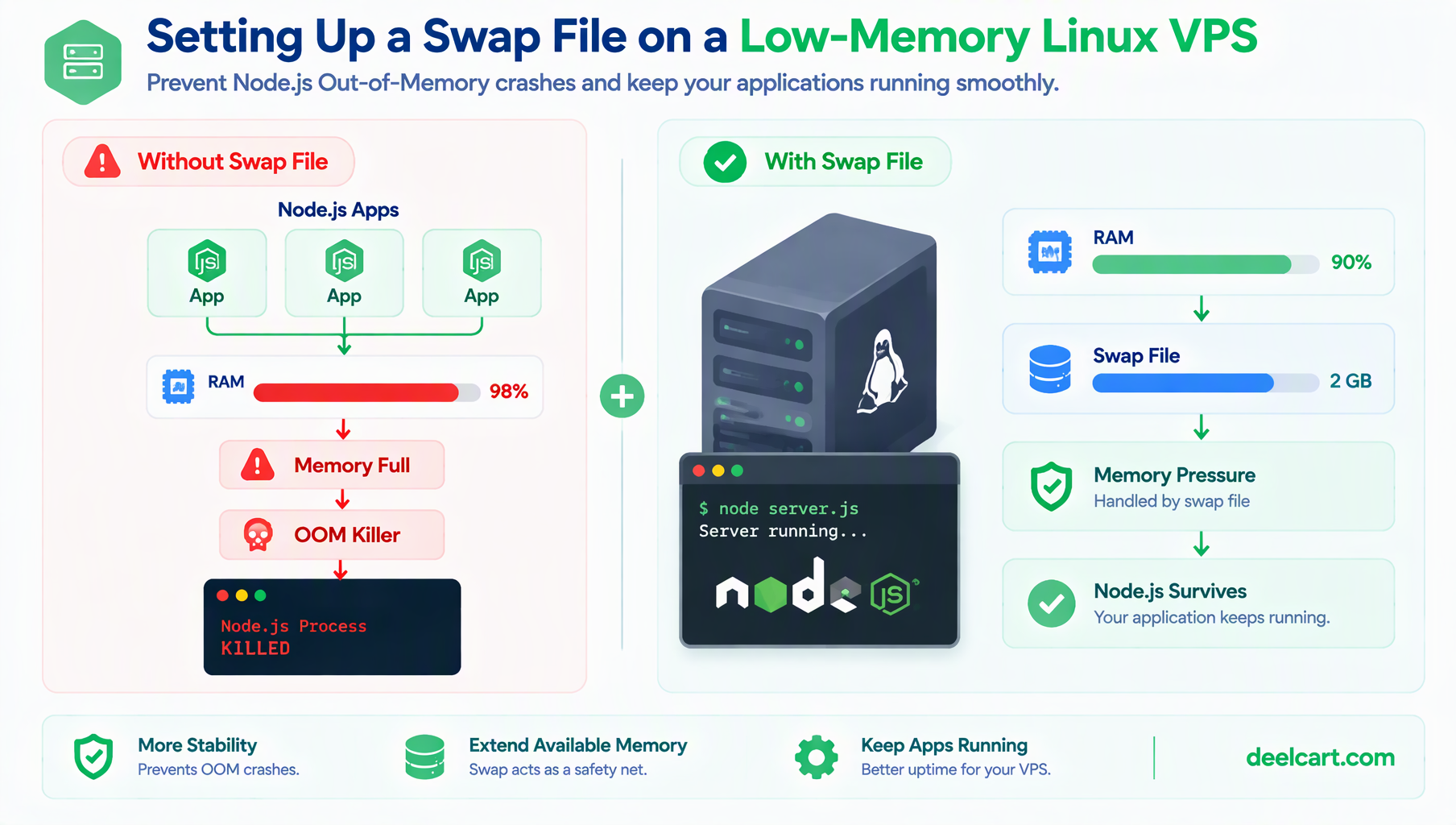
Finding Out It's the OOM Killer, Not Your App
The application logs looking completely clean is itself a clue — a real application-level crash, an unhandled exception, a database connection failure, all of those show up in your own logging. A process that simply vanishes with nothing in its own logs to explain it is characteristic of something external ending it, not the application failing on its own terms.
Confirming this is one command:
dmesg | grep -i "out of memory"or, on systems where dmesg history is limited:
journalctl -k | grep -i "oom"If the OOM killer has been active, this will show entries naming the process it killed and why — Linux tracks and logs every OOM kill decision at the kernel level, which is exactly the visibility you don't get from the application's own logs.
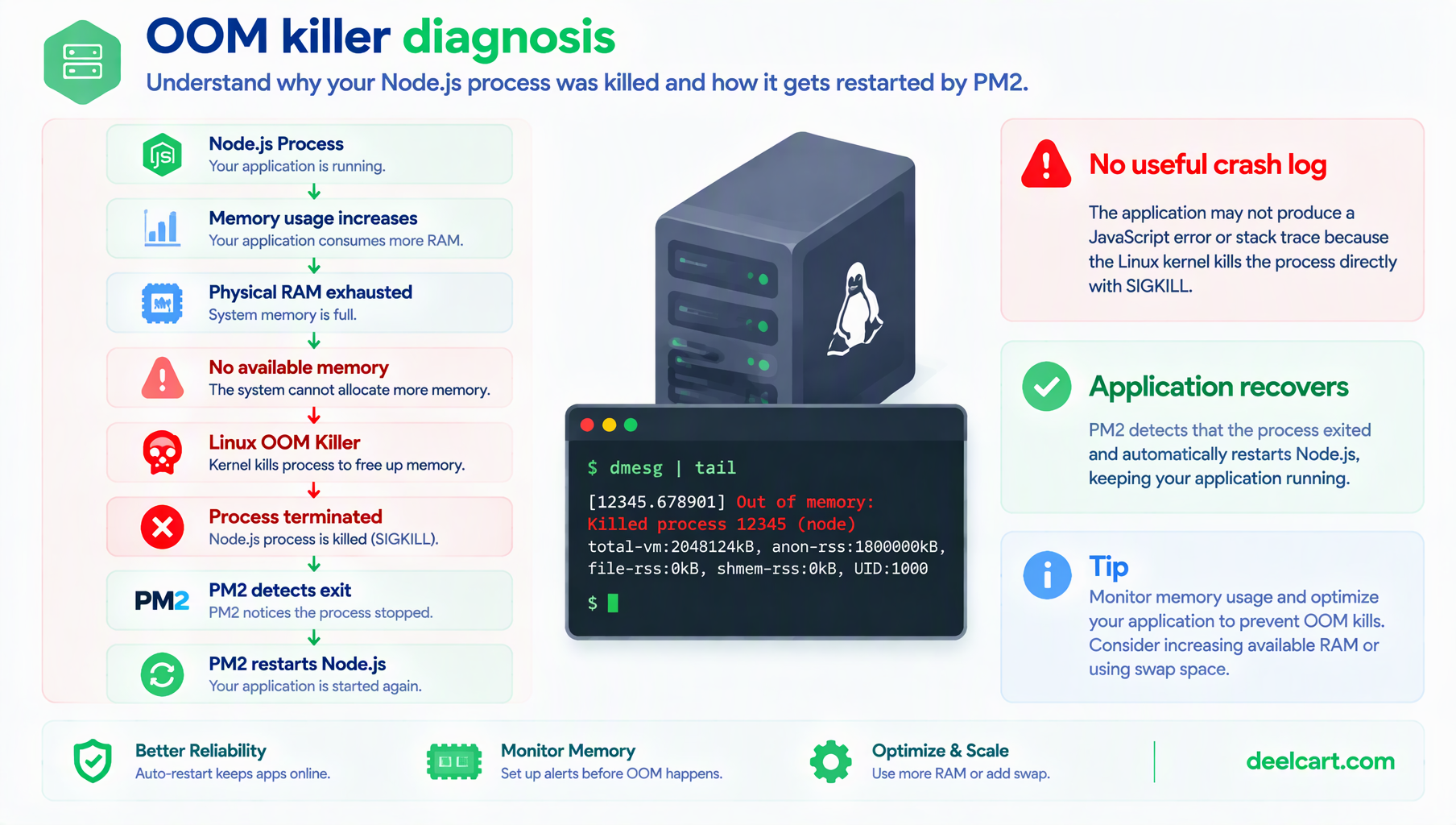
Why This Happens on a Small VPS Specifically
The OOM killer activates when the system is critically low on available memory and something has to give — it picks a process (using its own scoring heuristic, generally favoring killing whatever's using the most memory) and kills it outright to free memory for the rest of the system to keep functioning. On a server with generous RAM, you'd need genuinely runaway memory usage to trigger this. On a small VPS running several services at once — a database, multiple Node processes, the OS itself — normal, non-buggy memory usage across everything running can add up to enough pressure to trigger it, especially during a burst (several cron jobs running concurrently, a temporary spike in traffic, a large query).
Checking Whether Swap Is Already Configured
Many minimal VPS images ship with no swap configured at all. Checking is quick:
free -hIf the Swap row shows 0 across the board, there's no swap space at all — meaning the moment physical RAM is exhausted, there's no overflow buffer, and the OOM killer activates immediately rather than the system having room to breathe under a temporary spike.
Setting Up a Swap File
A swap file (rather than a dedicated swap partition) is the simplest approach on an existing VPS, and doesn't require repartitioning the disk. Here's the actual sequence:
# Create a 2GB swap file (adjust size based on your available disk space)
sudo fallocate -l 2G /swapfile

# Restrict permissions before enabling it — swap can contain sensitive memory contents
sudo chmod 600 /swapfile

# Format it as swap
sudo mkswap /swapfile

# Enable it immediately
sudo swapon /swapfile

# Confirm it's active
sudo swapon --show
free -h
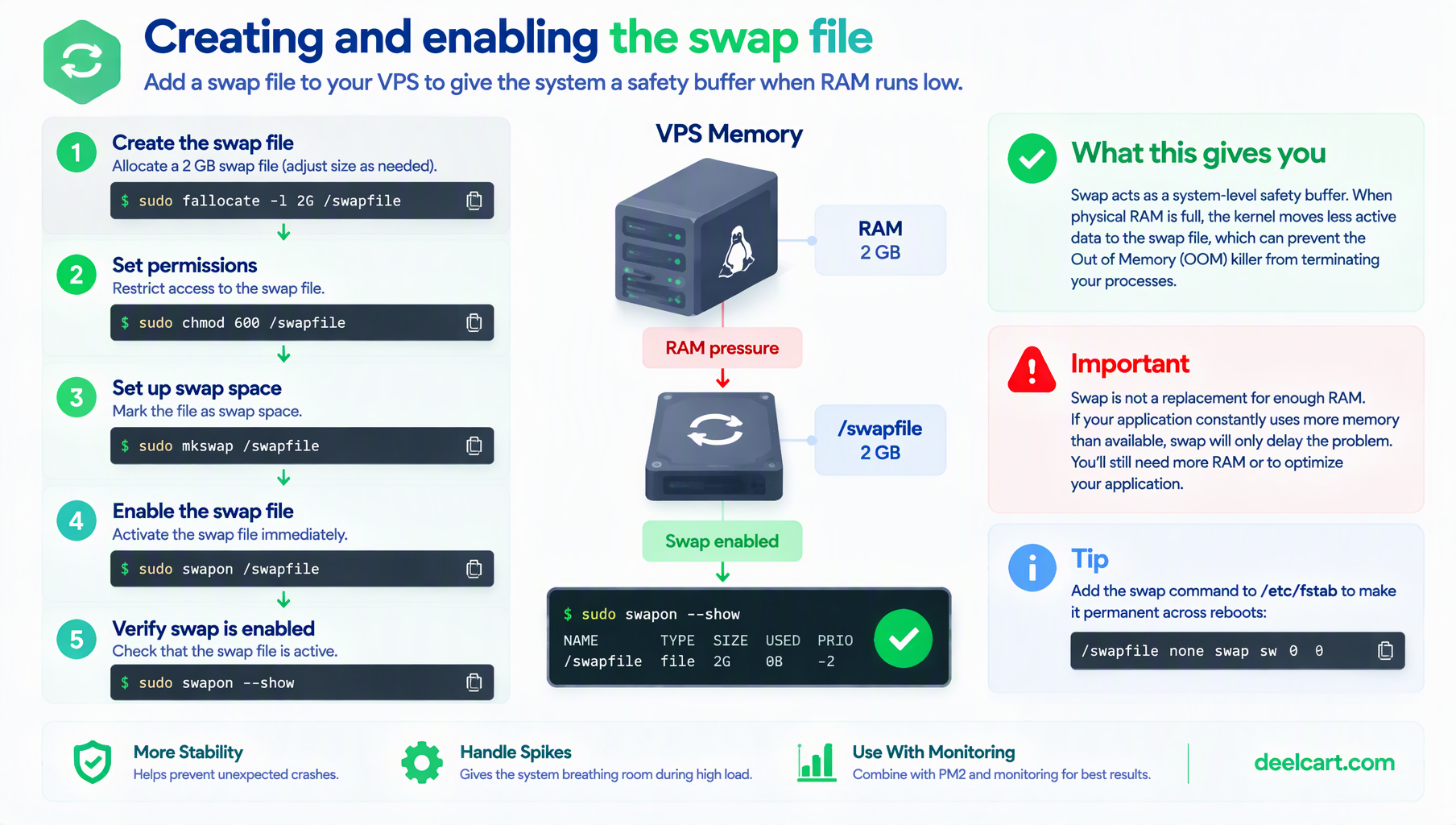
At this point swap is active, but only until the next reboot — it needs an entry in /etc/fstab to persist:
echo '/swapfile none swap sw 0 0' | sudo tee -a /etc/fstabWorth double-checking after a reboot that it actually took effect (swapon --show again) rather than assuming the fstab entry worked correctly the first time.
Choosing a Sensible Swap Size
There's no single universally correct size — it depends on your actual RAM and workload. A common starting point on a low-memory VPS is swap equal to your physical RAM, up to some reasonable cap (going far beyond 4-8GB of swap rarely helps in practice, since swap is drastically slower than RAM and heavy sustained reliance on it will make the whole system sluggish rather than actually solving a memory shortage). Swap is meant to absorb occasional pressure spikes, not to serve as a permanent substitute for RAM your workload genuinely needs on an ongoing basis.
Tuning Swappiness
swappiness controls how eagerly the kernel moves memory to swap versus keeping it in RAM, on a scale of 0-100. The default (often 60) is tuned for general-purpose desktop use, not for a server that would rather keep active application memory in fast RAM and only fall back to swap when actually necessary:
# Check current value
cat /proc/sys/vm/swappiness

# Lower it — 10 means "prefer RAM strongly, only swap when RAM is genuinely tight"
sudo sysctl vm.swappiness=10
To make this persist across reboots:
echo 'vm.swappiness=10' | sudo tee -a /etc/sysctl.confA lower value means the system holds onto RAM more aggressively and only reaches for swap under real pressure, rather than proactively swapping out memory that could still comfortably fit in RAM.
What Swap Does and Doesn't Fix
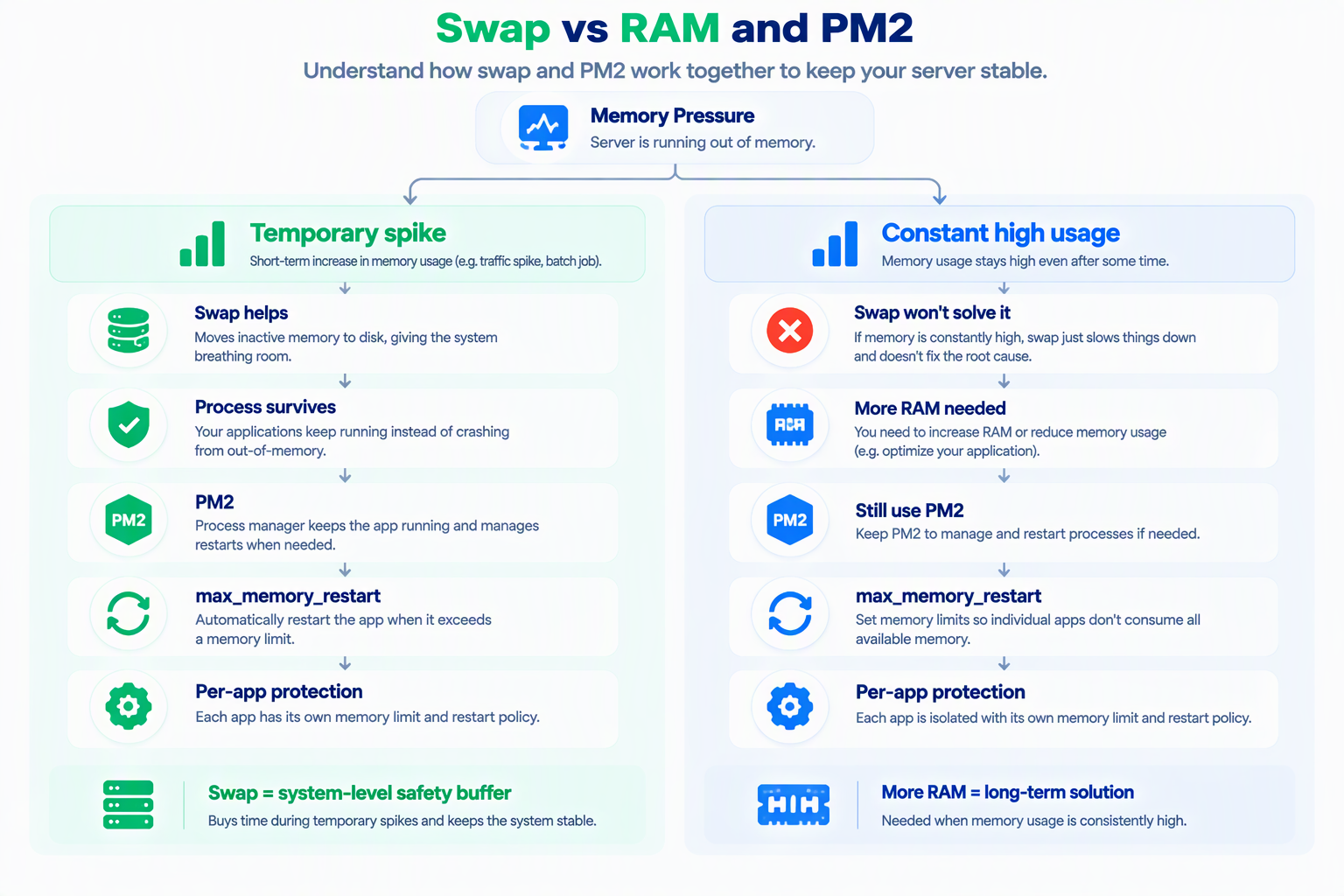
Swap buys you a buffer against temporary memory pressure spikes — the exact scenario that was killing my process. It does not fix a workload that's genuinely, consistently too large for the RAM available. If your applications' baseline memory usage under normal (not spiky) conditions is already close to or exceeding physical RAM, swap will keep things technically running but with a real performance cost, since swap is orders of magnitude slower than RAM — a server that's constantly swapping under normal load needs more RAM, not a bigger swap file.
The distinction matters for diagnosis: check whether OOM kills correlate with specific spike events (a cron job, a traffic burst) versus happening under otherwise steady, unremarkable load. The former is exactly what swap is for; the latter is a sign the server is simply undersized for what's actually running on it.
Frequently Asked Questions
Will adding swap slow my server down?
Swap itself sitting unused costs nothing — it only affects performance when actively being used, since reading/writing swap (typically on disk, even on an SSD-backed VPS) is meaningfully slower than RAM. Occasional light swap use during a brief spike is a reasonable trade for not having a process killed outright; heavy sustained swap usage is a sign of genuine memory shortage rather than something swap alone should be relied on to solve.
Should I use maxmemoryrestart in PM2 instead of relying on swap?
They solve different problems and work well together. PM2's maxmemoryrestart proactively restarts a specific app before it grows unbounded, which is useful for catching a memory leak in your own code. Swap is a system-level safety net against overall memory pressure across everything running on the server, not specific to any one app. Using both — a sane per-app memory ceiling in PM2, plus swap as a system-level buffer — covers more failure modes than either alone.
How do I know if my swap size is actually adequate?
Monitor swap usage over time (free -h periodically, or a monitoring tool) rather than guessing. If swap usage regularly climbs high and stays there rather than spiking briefly and returning to near-zero, that's a signal either the swap size needs increasing or, more fundamentally, the server needs more RAM for what it's actually running.
Is a swap file as good as a dedicated swap partition?
For most VPS use cases, a swap file performs comparably to a partition and is significantly easier to set up, resize, or remove after the fact without touching disk partitioning. The performance difference between the two is negligible on modern systems; the operational simplicity of a file is the more relevant factor for a typical small VPS setup.
Justin is a self-taught developer who builds and runs DeelCart himself — from the articles to the server it runs on. He manages his own Linux infrastructure and writes guides based on tools and workflows he actually uses day to day.